 Trackcorder
A recorder that keeps your edit open
Four tracks. One timeline. Nothing to export.
Trackcorder records your screen, camera, mic and system audio as separate synced files on your Mac, with a ready timeline for DaVinci Resolve, Final Cut Pro or Premiere Pro. You, or an AI, can start editing right away.
Opens straight in
- DaVinci Resolve timeline.fcpxml
- Final Cut Pro timeline.fcpxml
- Premiere Pro timeline.xml
- Any other editor .mov + .m4a
- AI editing tools sync.json
The export step is the part you never needed.
Most recorders capture into their own project, so your footage has to come back out through a render before your editor can touch it. Trackcorder writes the raw files directly.
- The usual route
- Record Open in the recorder’s editor Export Wait Import into your editor Line up by hand
- Trackcorder
- Record Import the timeline Edit
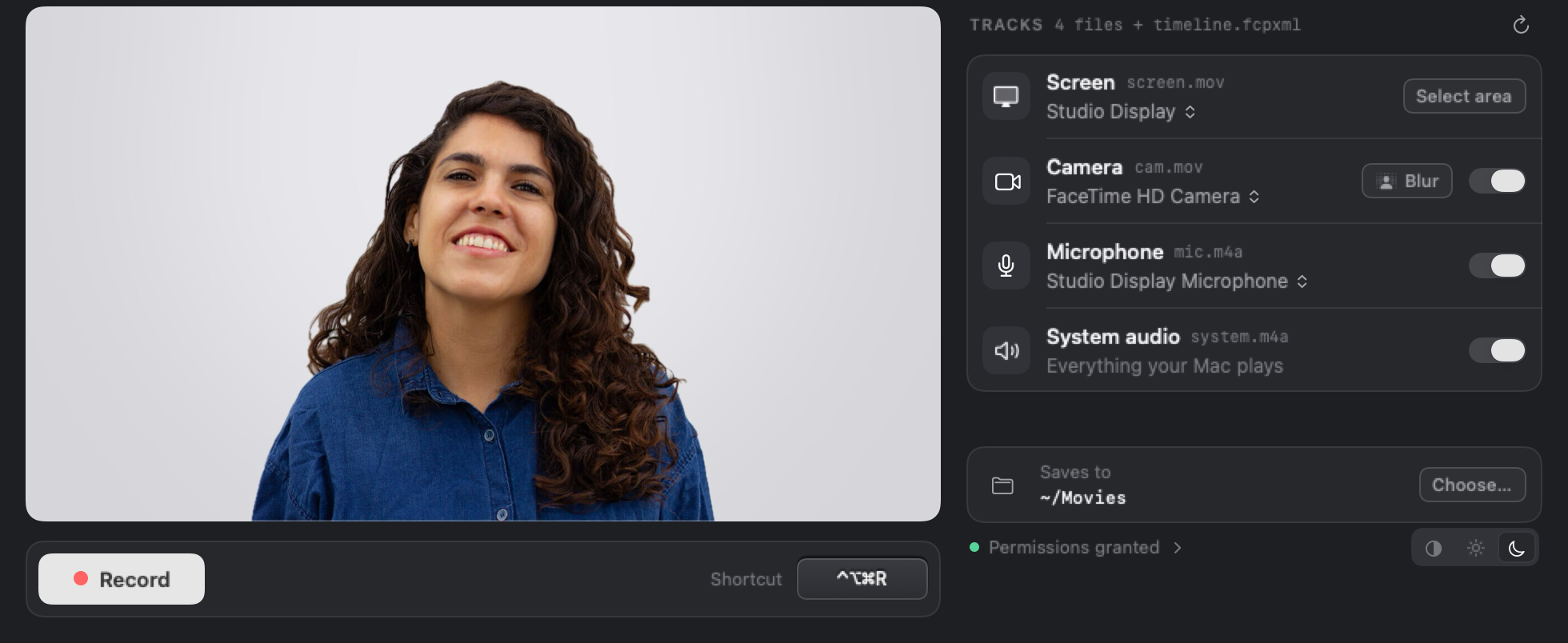
You arm tracks, not settings.
Every source is listed as the file it will become. Switch off what you don’t need, press Record or ⌃⌥⌘R from any app, and that’s the whole setup.
What lands in the folder.
Every recording gets its own folder, with nothing wrapped in a project file.
screen.mov Your display or a dragged area HEVC, 50 Mbps, native Retina pixels, constant 60 fps cam.mov Your camera, with optional background blur HEVC, the highest format your camera offers mic.m4a Your voice, on its own Clean up or replace it without touching anything else system.m4a Everything your Mac plays Optional. Duck it under your voice in the mix timeline.fcpxml The timeline for DaVinci Resolve and Final Cut Pro Every clip on its own track, already in sync timeline.xml The same timeline for Premiere Pro Final Cut 7 XML, the format Premiere imports sync.json Every track described, with exact offsets For any other editor, a script or an AI tool AI editing
Ready for an AI to start the edit.
A flattened screen recording has to be pulled apart before anyone, human or AI, can edit it properly. Trackcorder never mixes anything, so the session is already in the shape an AI editing tool needs.
-
A clean voice to transcribe
mic.m4a holds only your voice, with no music or app sounds mixed in, so transcripts come out clean.
-
Cut by what you said
Screen and camera are separate, so a tool can trim on the transcript and switch between them sentence by sentence.
-
A folder that explains itself
sync.json lists every file, what it contains, its size and where it starts. Hand the folder over and nothing needs explaining.
Pause without breaking sync
Paused time is cut from every file at once, so the tracks stay aligned.
Record an area
Drag a rectangle, check it, and only that part of the screen is captured at full resolution.
Blur your background
One click, with a strength slider. It runs on your Mac and is baked into cam.mov.
Stay out of your own shot
Run the session from the menu bar or a global shortcut, so the window never appears in the capture.
$19
One payment · No subscription · No account
The App Store charges in your local currency.
Try it on your own workflow first.
The free download does everything, up to 3 minutes per recording. That’s enough to import a session into your editor and see the tracks land before you pay.
I built Trackcorder because I edit my own videos in Resolve and got tired of exporting from one app to open in another. It runs entirely on your Mac, with no servers behind it, so there’s no reason to charge you every month.
Celia Rozalén
Questions.
Which editors does it work with?
DaVinci Resolve and Final Cut Pro import timeline.fcpxml, and Premiere Pro imports timeline.xml. Any other editor opens the plain .mov and .m4a files, and sync.json gives the exact offsets to line them up.
Can an AI edit the recording?
That is part of the point. Every source is its own clean file and sync.json describes them all, so an AI editing tool or agent can transcribe your voice, cut on it and pick between screen and camera without untangling a flattened video first.
How much disk space does it use?
The screen track is written at 50 Mbps, which is up to about 22 GB per hour. Check your free space before a long session.
Does anything get uploaded?
No. There is no account, no server and no analytics in the app. Recordings are saved to ~/Movies or a folder you choose.
What does it need to run?
A Mac on macOS 14 Sonoma or later, plus Camera, Microphone and Screen Recording permissions. macOS asks for a relaunch the first time you allow Screen Recording.
More help on the support page.